> ## Documentation Index
> Fetch the complete documentation index at: https://auth0-actions-triggers-prototype.mintlify.site/llms.txt
> Use this file to discover all available pages before exploring further.
> Learn how to configure your Auth0 Vault Connections to authorize requests against the Management API.
# Auth0 Vault Connection
## Get access to Auth0 Management API
[Create a Machine-to-Machine (M2M) Application](/docs/get-started/auth0-overview/create-applications/machine-to-machine-apps) authorized for Auth0 Management API.
Remember to authorize your M2M Application to access the Management API and select the right scopes following the Least Privilege Principle:
* For Get User: `read:users`
* For Create User: `create:users`
* For Update User: `update:users`
No need for Auth0 Management API authorization to send notifications through the configured providers at your Auth0 Tenant.
## Configure your Vault Connection
To configure an Auth0 Vault Connection for your Auth0 Flow Actions, set the required parameters based on the previous created M2M Application.
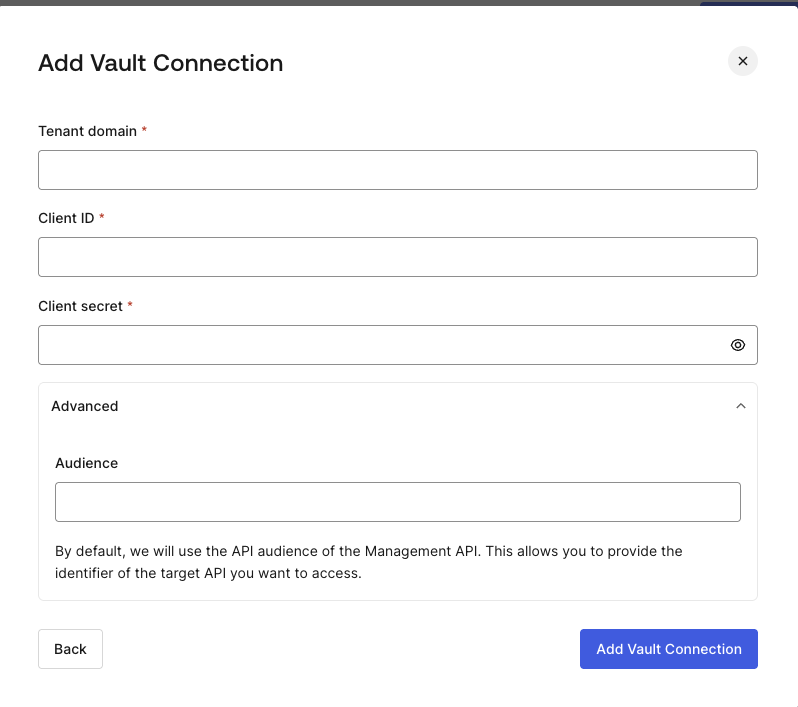 #### Input settings
| Parameter | Description |
| ------------------- | -------------------------------------------------------------------------- |
| Tenant Domain | Tenant domain of your M2M Application. |
| Client ID | Client ID of your M2M Application authorized for Auth0 Management API. |
| Client Secret | Client Secret of your M2M Application authorized for Auth0 Management API. |
| Audience (Optional) | Auth0 Management API Audience. |
By default, the Audience will be based on the Tenant Domain.
#### Input settings
| Parameter | Description |
| ------------------- | -------------------------------------------------------------------------- |
| Tenant Domain | Tenant domain of your M2M Application. |
| Client ID | Client ID of your M2M Application authorized for Auth0 Management API. |
| Client Secret | Client Secret of your M2M Application authorized for Auth0 Management API. |
| Audience (Optional) | Auth0 Management API Audience. |
By default, the Audience will be based on the Tenant Domain.