> ## Documentation Index
> Fetch the complete documentation index at: https://auth0-actions-triggers-prototype.mintlify.site/llms.txt
> Use this file to discover all available pages before exploring further.
> Describes the settings related to tenants available in the Auth0 Dashboard.
# Tenant Settings
Use the **Tenant Settings** page in the Auth0 Dashboard at [Dashboard > Settings](https://manage.auth0.com/#/tenant) to configure various settings related to your Auth0 tenant.
## Recommended settings
When you configure your tenant, set the following items:
* **Specify the Environment Tag.** Tenants tagged as **Production** are granted higher rate limits than tenants tagged as **Development** or **Staging**. On non-Enterprise plans, only one tenant per subscription can be tagged as **Production**. To learn more, read [Set Up Multiple Environments](/docs/get-started/auth0-overview/create-tenants/set-up-multiple-environments).
* **Set the Support Email and Support URL.** If a user encounters an issue while logging in, they'll want to reach out for help. Set these values to direct them to an email address or landing page to get assistance.
* **Configure a custom error page.** If possible, you should host your own custom error page and configure Auth0 to use it instead of the default page. This allows you to provide more complete and customized explanations to users about what to do in the event of an error.
* **Set up a custom domain.** If you are on a paid plan, you can configure a custom domain for your Auth0 tenant. A custom domain unifies the login experience with your brand and provides additional benefits. To learn more, read [Custom Domains](/docs/customize/custom-domains).
* **Set the Single Sign-On (SSO) session timeout.** The SSO session timeout value specifies the time until a user's session expires. The value is 7 days by default, which is the length of time users can access your Auth0-integrated applications without re-entering their credentials. To learn more, read [Sessions](/docs/manage-users/sessions).
* **Set up tenant members.** Configure additional Auth0 Dashboard users and enable multi-factor authentication (MFA). To learn more, read [Manage Dashboard Access](/docs/get-started/manage-dashboard-access) and [Manage Dashboard Access with Multi-Factor Authentication](/docs/get-started/manage-dashboard-access/add-change-remove-mfa).
* **Disable the Enable Application Connections setting.** If this setting is enabled, all configured connections will be automatically enabled for any new application you create. As a result, users may be able to log in to the application through connections that you did not intend to be available. Disable this setting so you can explicitly enable the connections appropriate for each application.
* **Enable Attack Protection.** Protect your users against brute force attacks and breached passwords. To learn more, read [Attack Protection](/docs/secure/attack-protection).
## General
On the **General** tab, you can customize basic tenant settings.
### Settings
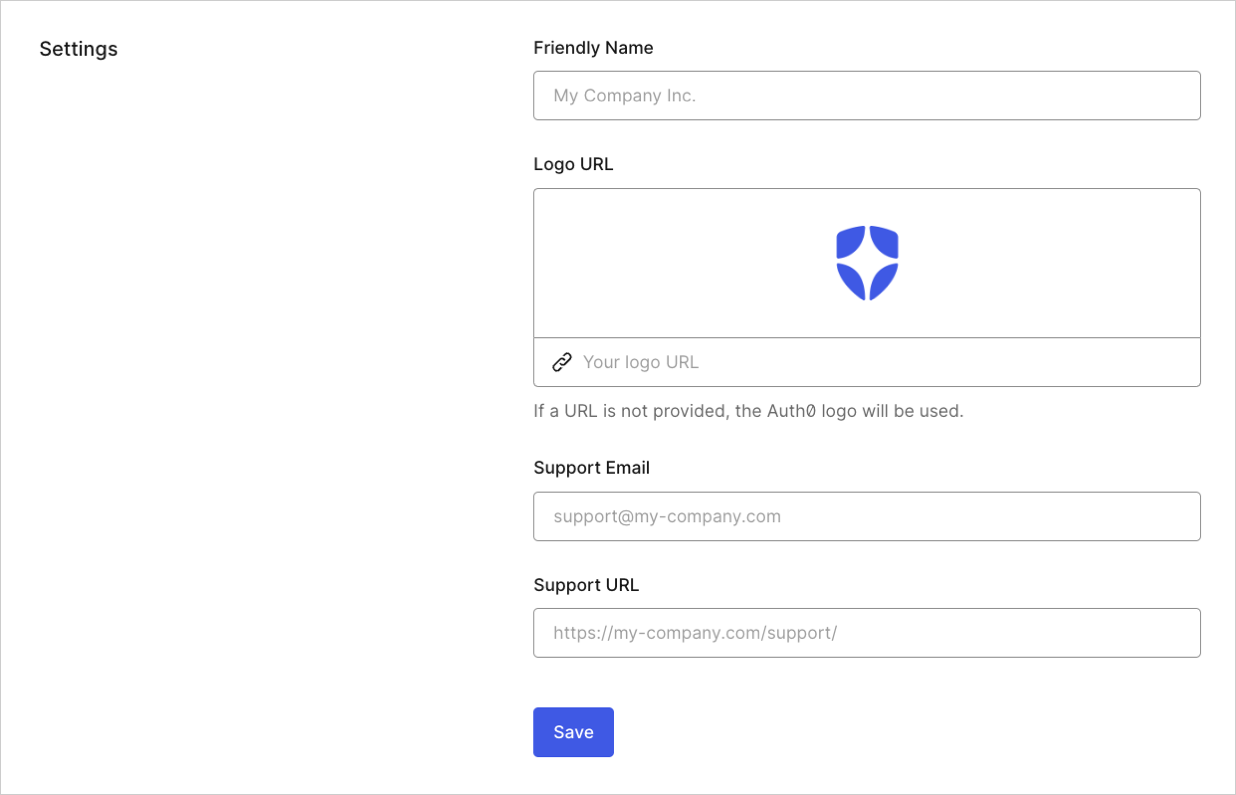 * **Friendly Name**: Name you want to be displayed to your users on the Universal Login page. Typically this is the name of your company or organization.
* **Logo URL**: URL of the logo you want to be displayed on the Universal Login page. Minimum recommended resolution is 200 pixels (width) by 200 pixels (height).
* **Support Email**: Email address used to contact your support team.
* **Support URL**: Link to your company or organization support page.
### Environment Tag
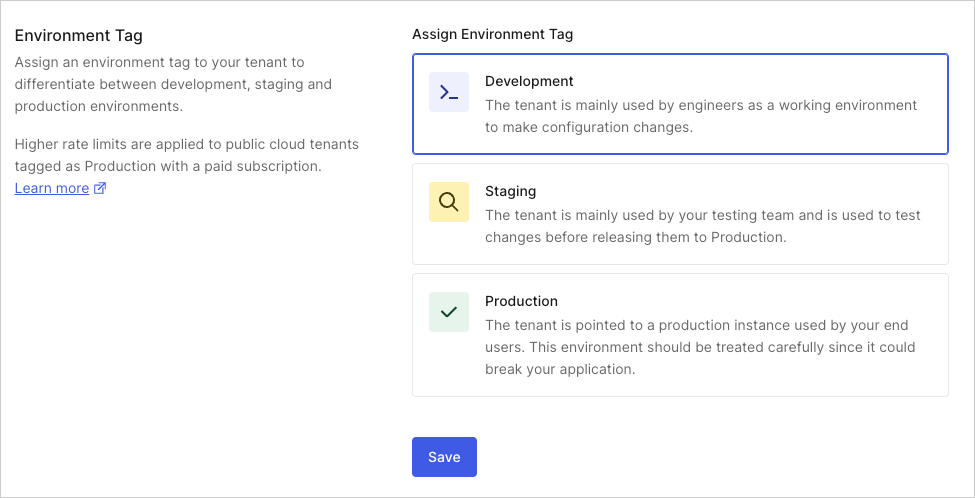
You can identify your tenant as a production, staging, or development tenant to differentiate it from other tenants. Higher rate limits apply to tenants tagged as Production with a paid subscription. To learn more, read [Set Up Multiple Environments](/docs/get-started/auth0-overview/create-tenants/set-up-multiple-environments).
* **Friendly Name**: Name you want to be displayed to your users on the Universal Login page. Typically this is the name of your company or organization.
* **Logo URL**: URL of the logo you want to be displayed on the Universal Login page. Minimum recommended resolution is 200 pixels (width) by 200 pixels (height).
* **Support Email**: Email address used to contact your support team.
* **Support URL**: Link to your company or organization support page.
### Environment Tag
You can identify your tenant as a production, staging, or development tenant to differentiate it from other tenants. Higher rate limits apply to tenants tagged as Production with a paid subscription. To learn more, read [Set Up Multiple Environments](/docs/get-started/auth0-overview/create-tenants/set-up-multiple-environments).
 ### API Authorization Settings
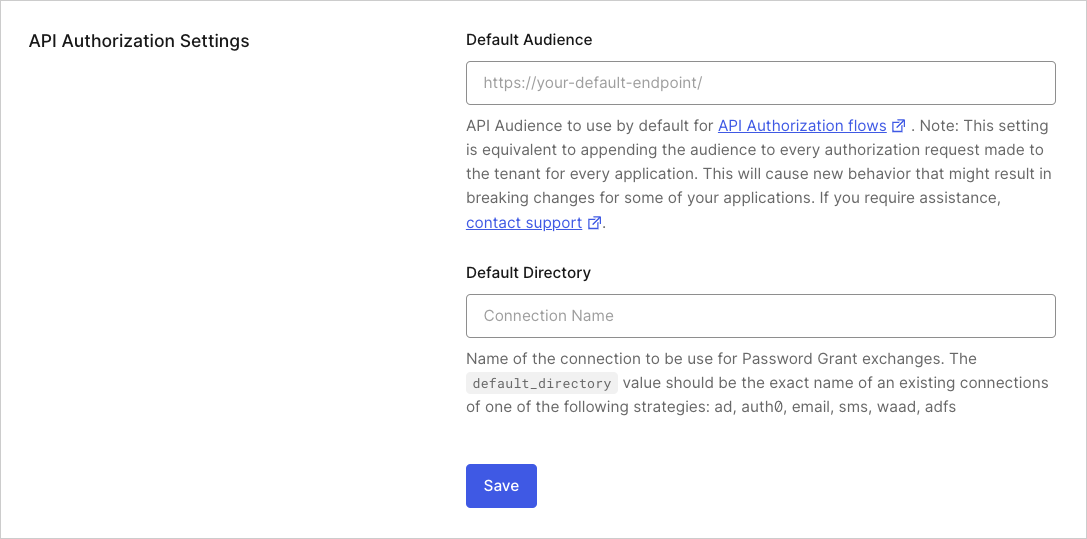 * **Default Audience**: API identifier to use for [Authorization Flows](/docs/get-started/authentication-and-authorization-flow). If you enter a value, all access tokens issued by Auth0 will specify this API identifier as an audience. Setting the **Default Audience** is equivalent to appending this audience to every authorization request made to your tenant for every application. This will cause new behavior that might result in breaking changes for some of your applications. Please [contact support](/docs/troubleshoot/customer-support/open-and-manage-support-tickets) if you require assistance.
* **Default Directory**: Name of the default connection to be used for both the [Resource Owner Password Flow](/docs/get-started/authentication-and-authorization-flow/resource-owner-password-flow) and [Universal Login Experience](/docs/authenticate/login/auth0-universal-login/universal-login-vs-classic-login/universal-experience). Its value should be the exact name of an existing connection for one of the following strategies: `auth0-adldap`, `ad`, `auth0`, `email`, `sms`, `waad`, or `adfs`.
### Error Pages
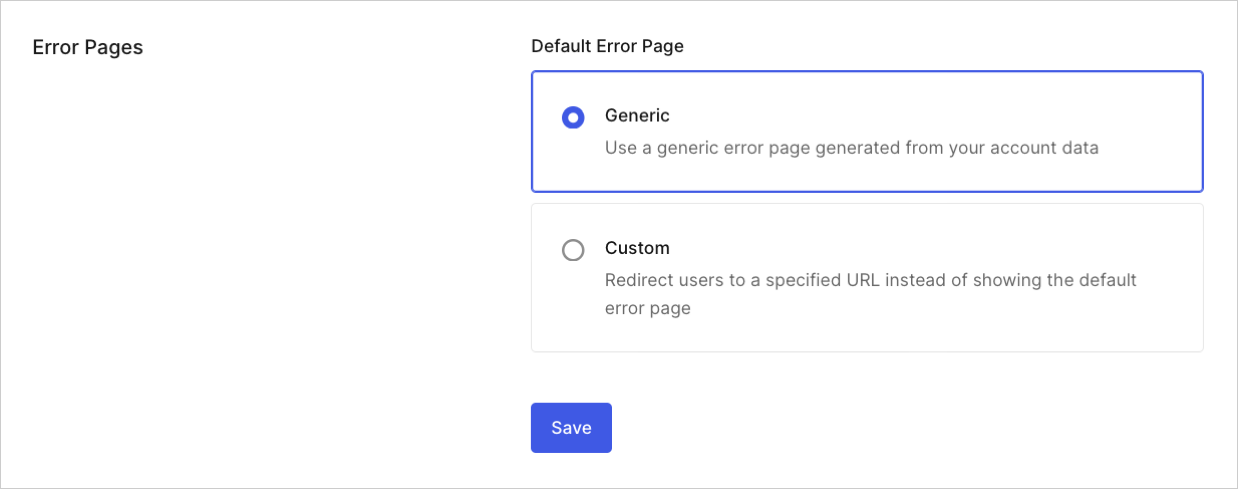
In the event of an authorization error, you can either display a generic error page to your users or you can redirect users to your own custom error page. To learn more, read [Custom Error Pages](/docs/customize/login-pages/custom-error-pages).
* **Default Audience**: API identifier to use for [Authorization Flows](/docs/get-started/authentication-and-authorization-flow). If you enter a value, all access tokens issued by Auth0 will specify this API identifier as an audience. Setting the **Default Audience** is equivalent to appending this audience to every authorization request made to your tenant for every application. This will cause new behavior that might result in breaking changes for some of your applications. Please [contact support](/docs/troubleshoot/customer-support/open-and-manage-support-tickets) if you require assistance.
* **Default Directory**: Name of the default connection to be used for both the [Resource Owner Password Flow](/docs/get-started/authentication-and-authorization-flow/resource-owner-password-flow) and [Universal Login Experience](/docs/authenticate/login/auth0-universal-login/universal-login-vs-classic-login/universal-experience). Its value should be the exact name of an existing connection for one of the following strategies: `auth0-adldap`, `ad`, `auth0`, `email`, `sms`, `waad`, or `adfs`.
### Error Pages
In the event of an authorization error, you can either display a generic error page to your users or you can redirect users to your own custom error page. To learn more, read [Custom Error Pages](/docs/customize/login-pages/custom-error-pages).
 ### Languages
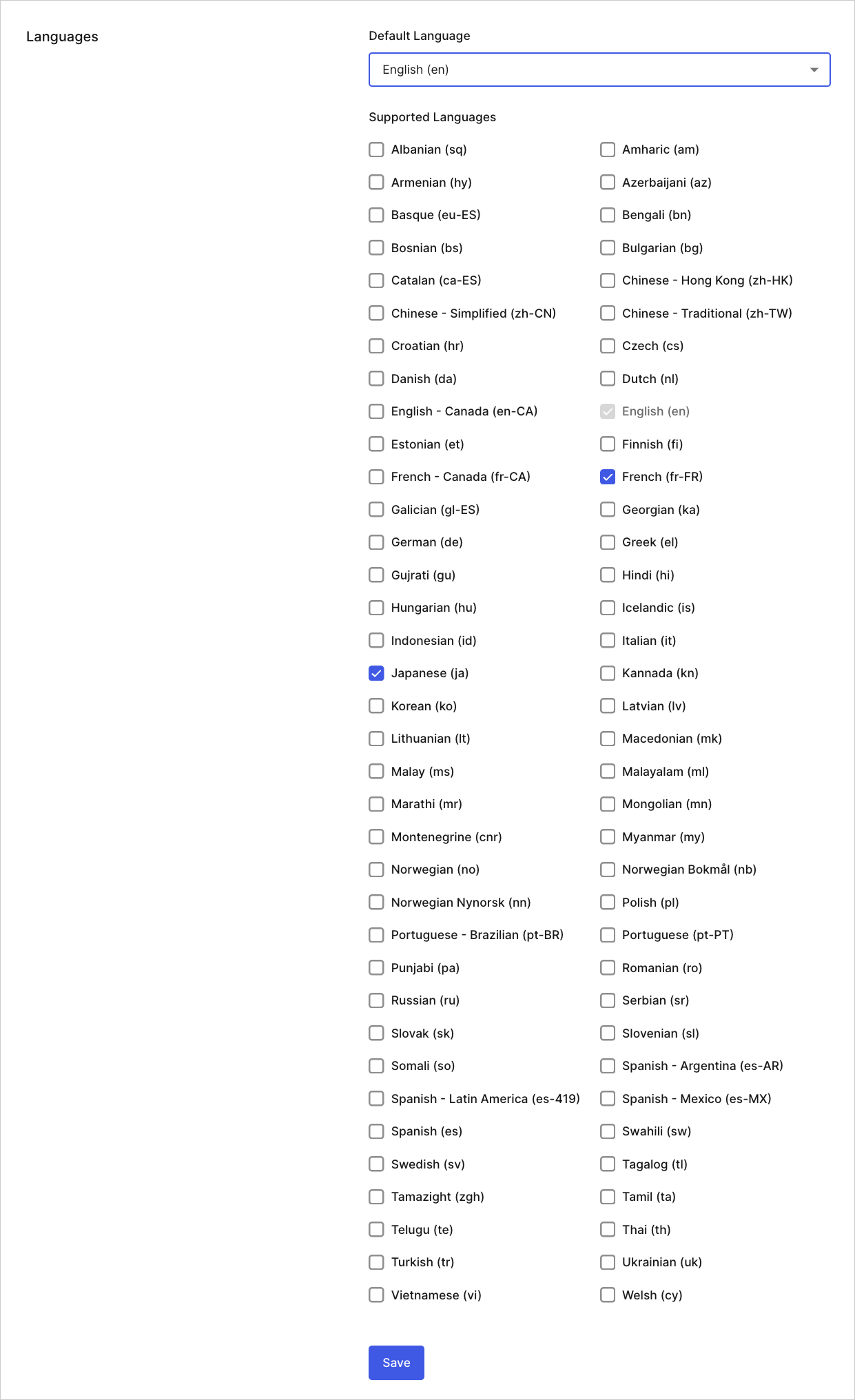 * **Default Language**: Language your tenant will use by default.
* **Supported Languages**: Languages also supported by your tenant.
## Subscription
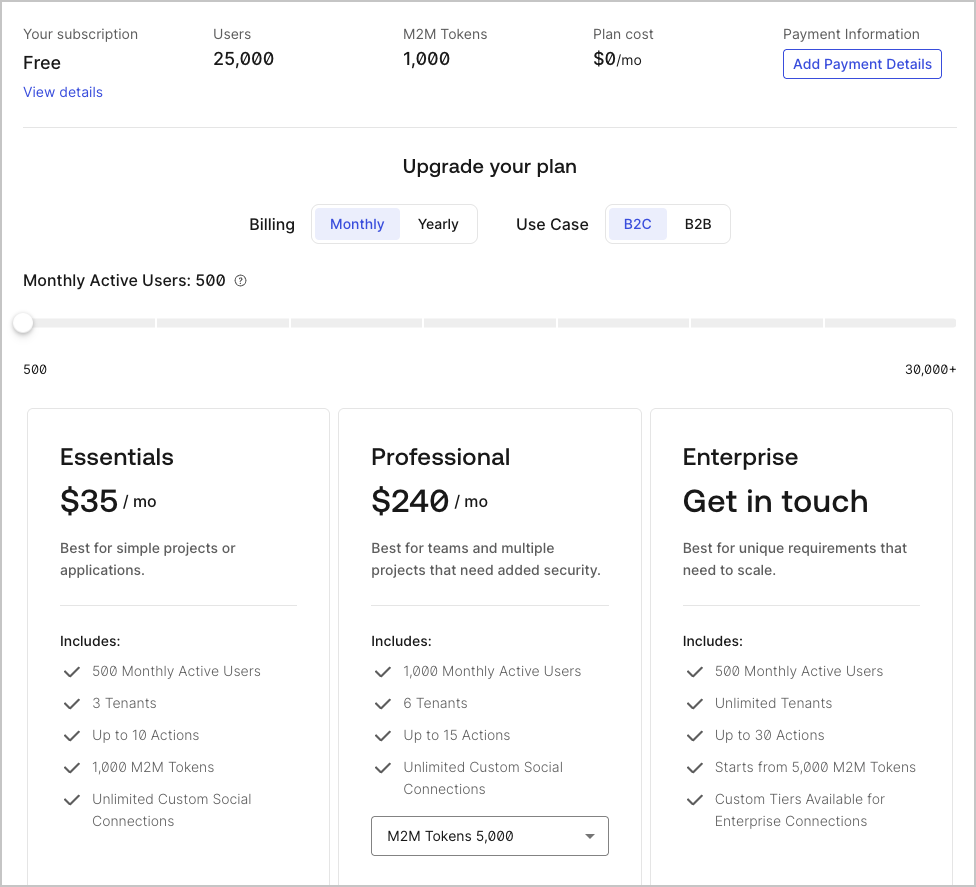
On the **Subscription** tab, you can review your current subscription and compare features of your current plan to other Auth0 subscription plans. You can also change your subscription plan. To learn more, read [Manage Subscription](/docs/troubleshoot/customer-support/manage-subscriptions).
If you have an Enterprise subscription, please refer to your Auth0 agreement for details.
* **Default Language**: Language your tenant will use by default.
* **Supported Languages**: Languages also supported by your tenant.
## Subscription
On the **Subscription** tab, you can review your current subscription and compare features of your current plan to other Auth0 subscription plans. You can also change your subscription plan. To learn more, read [Manage Subscription](/docs/troubleshoot/customer-support/manage-subscriptions).
If you have an Enterprise subscription, please refer to your Auth0 agreement for details.
 ## Payment
On the **Payment** tab, you can enter or update your billing details.
## Tenant Members
On the **Tenant Members** tab, you can view a list tenant members assigned to your tenant. You may also add or remove tenant members and review their assigned roles and if they have multi-factor authentication (MFA) enabled. To learn more, read [Manage Dashboard Access](/docs/get-started/manage-dashboard-access).
## Payment
On the **Payment** tab, you can enter or update your billing details.
## Tenant Members
On the **Tenant Members** tab, you can view a list tenant members assigned to your tenant. You may also add or remove tenant members and review their assigned roles and if they have multi-factor authentication (MFA) enabled. To learn more, read [Manage Dashboard Access](/docs/get-started/manage-dashboard-access).
 ## Custom Domains
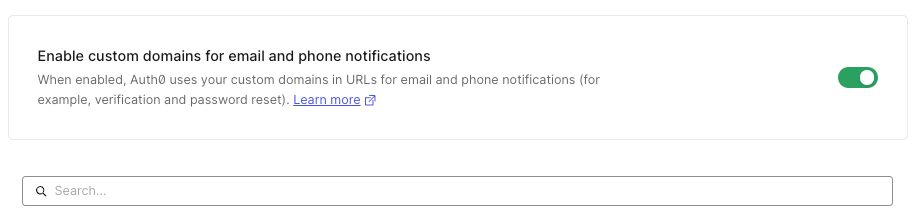
On the **Custom Domains** tab, you can configure a custom domain to maintain a consistent user experience. When you create a custom domain, users will remain in your domain for login rather than being redirected to your `auth0.com` domain. To learn more, read [Custom Domains](/docs/customize/custom-domains).
Both your specific login implementation and your Auth0 plan or custom agreement affect whether this feature is available. To learn more, read [Pricing](https://auth0.com/pricing).
## Custom Domains
On the **Custom Domains** tab, you can configure a custom domain to maintain a consistent user experience. When you create a custom domain, users will remain in your domain for login rather than being redirected to your `auth0.com` domain. To learn more, read [Custom Domains](/docs/customize/custom-domains).
Both your specific login implementation and your Auth0 plan or custom agreement affect whether this feature is available. To learn more, read [Pricing](https://auth0.com/pricing).
 ## Signing Keys
On the **Signing Keys** tab, you can securely manage the signing key and certificate used to sign ID tokens, access tokens, SAML assertions, and WS-Fed assertions that are sent to your applications.
## Signing Keys
On the **Signing Keys** tab, you can securely manage the signing key and certificate used to sign ID tokens, access tokens, SAML assertions, and WS-Fed assertions that are sent to your applications.
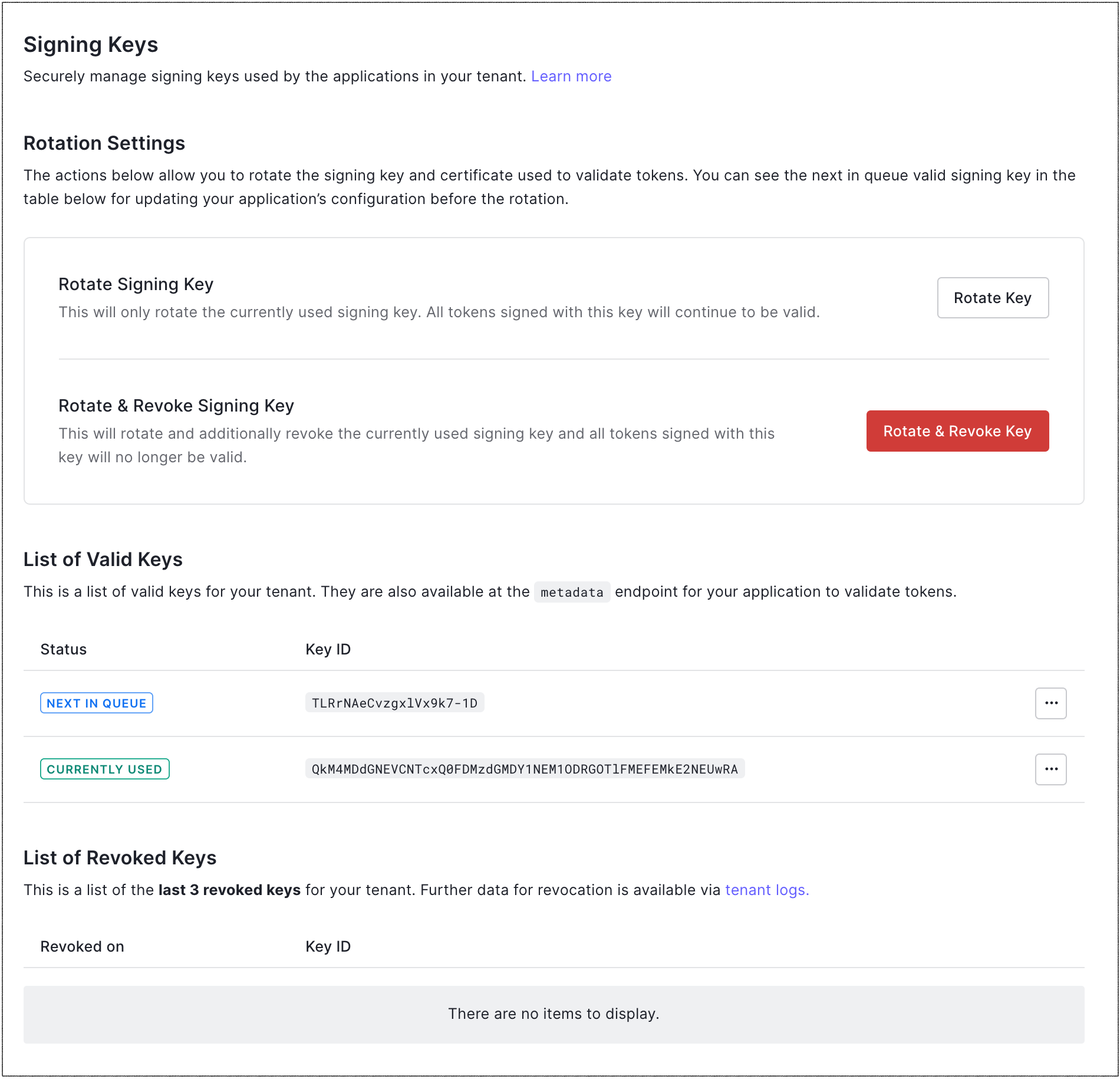 * **Rotation Settings**: Settings that allow you to rotate the application signing key and certificate. You can choose whether or not to revoke the signing key upon rotation. To learn more, read [Signing Keys](/docs/get-started/tenant-settings/signing-keys).
* **Rotate Signing Key**: Rotates the signing key without revoking it; effectively, moves the current key to the previous key. All tokens signed with the previous key will still be valid until it is revoked.
* **Rotate & Revoke Signing Key**: Rotates the signing key and then revokes it; effectively, moves the current key to the previous key, and then invalidates the previous key. Make sure you have updated your application with the next key in the queue before you rotate and revoke the current key.
* **List of Valid Keys**: List of valid application signing keys for your tenant, which are also available at the Metadata endpoint for your application. Valid keys include:
* **Next in queue**: Key that will be used when the signing key is next rotated.
* **Currently used**: Key that is currently in use.
* **Previously used**: Key that was previously used. Its appearance indicates that the signing key has been rotated, but the previously-used key has not yet been revoked.
* **List of Revoked Keys**: List of the last three revoked keys for your tenant. More data about revoked keys is available in tenant logs.
## Advanced
On the **Advanced** tab, you can configure advanced tenant settings.
### Login and Logout
* **Rotation Settings**: Settings that allow you to rotate the application signing key and certificate. You can choose whether or not to revoke the signing key upon rotation. To learn more, read [Signing Keys](/docs/get-started/tenant-settings/signing-keys).
* **Rotate Signing Key**: Rotates the signing key without revoking it; effectively, moves the current key to the previous key. All tokens signed with the previous key will still be valid until it is revoked.
* **Rotate & Revoke Signing Key**: Rotates the signing key and then revokes it; effectively, moves the current key to the previous key, and then invalidates the previous key. Make sure you have updated your application with the next key in the queue before you rotate and revoke the current key.
* **List of Valid Keys**: List of valid application signing keys for your tenant, which are also available at the Metadata endpoint for your application. Valid keys include:
* **Next in queue**: Key that will be used when the signing key is next rotated.
* **Currently used**: Key that is currently in use.
* **Previously used**: Key that was previously used. Its appearance indicates that the signing key has been rotated, but the previously-used key has not yet been revoked.
* **List of Revoked Keys**: List of the last three revoked keys for your tenant. More data about revoked keys is available in tenant logs.
## Advanced
On the **Advanced** tab, you can configure advanced tenant settings.
### Login and Logout
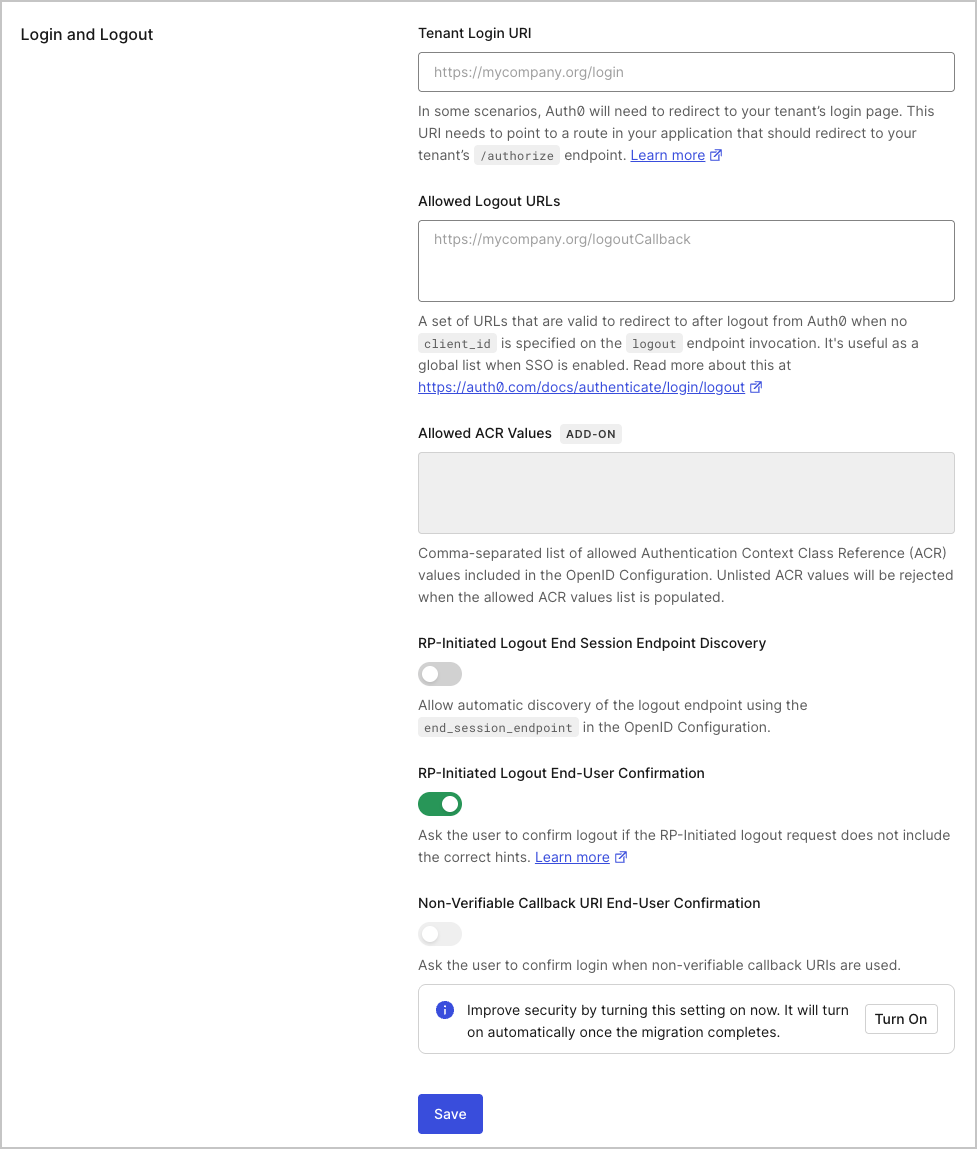 * **Tenant Login URI**: URI that points to a route in your application that starts the OIDC login flow by redirecting to the `/authorize` endpoint; it should take the form of `https://mytenant.org/login`. This will only be used in scenarios where Auth0 needs your tenant to start the OIDC login flow. To learn more, see [Configure Default Login Routes](/docs/authenticate/login/auth0-universal-login/configure-default-login-routes).
* **Allowed Logout URLs**: URLs Auth0 can redirect to after logout when no client\_id is specified on the Logout endpoint invocation. Useful as a global list when Single Sign-on (SSO) is enabled. To learn more, read [Logout](docs/authenticate/login/logout).
* **Allowed ACR Values**: List of allowed Authentication Context Class Reference (ACR). These values are included in the OpenID Configuration document. When populated, values not listed here will be rejected if used in authentication flows.
* **RP-Initiated Logout End Session Endpoint Discovery**: Controls if the logout endpoint is advertised in the OpenID Configuration responses as `end_session_endpoint`.
* **RP-Initiated Logout End-User Confirmation**: Controls whether the user is asked to confirm login if the RP-Initiated logout request does not include the correct hints.
* **Non-Verifiable Callback URI End-User Confirmation**: Controls whether the user is prompted to confirm login when a custom URI scheme is used as callback. Auth0 recommends that you **do not** skip end-user confirmation in these cases. To learn more, read [Measures Against Application Impersonation](docs/secure/security-guidance/measures-against-app-impersonation.mdx).
### Login Session Management
The **Login Session Management** settings configure the login session lifetime that represents the Auth0 Authorization Server session layer. The authorization server session layer drives single sign-on (SSO). To learn more, read [Single Sign-on](/docs/authenticate/single-sign-on).
Timeouts for tokens issued by Auth0 can be configured elsewhere. Token timeouts are often used to drive the Application session layer and appear in token claims, such as in the expiration claim for OpenID Connect (OIDC) ID tokens or the lifetime assertion for SAML.
* **Tenant Login URI**: URI that points to a route in your application that starts the OIDC login flow by redirecting to the `/authorize` endpoint; it should take the form of `https://mytenant.org/login`. This will only be used in scenarios where Auth0 needs your tenant to start the OIDC login flow. To learn more, see [Configure Default Login Routes](/docs/authenticate/login/auth0-universal-login/configure-default-login-routes).
* **Allowed Logout URLs**: URLs Auth0 can redirect to after logout when no client\_id is specified on the Logout endpoint invocation. Useful as a global list when Single Sign-on (SSO) is enabled. To learn more, read [Logout](docs/authenticate/login/logout).
* **Allowed ACR Values**: List of allowed Authentication Context Class Reference (ACR). These values are included in the OpenID Configuration document. When populated, values not listed here will be rejected if used in authentication flows.
* **RP-Initiated Logout End Session Endpoint Discovery**: Controls if the logout endpoint is advertised in the OpenID Configuration responses as `end_session_endpoint`.
* **RP-Initiated Logout End-User Confirmation**: Controls whether the user is asked to confirm login if the RP-Initiated logout request does not include the correct hints.
* **Non-Verifiable Callback URI End-User Confirmation**: Controls whether the user is prompted to confirm login when a custom URI scheme is used as callback. Auth0 recommends that you **do not** skip end-user confirmation in these cases. To learn more, read [Measures Against Application Impersonation](docs/secure/security-guidance/measures-against-app-impersonation.mdx).
### Login Session Management
The **Login Session Management** settings configure the login session lifetime that represents the Auth0 Authorization Server session layer. The authorization server session layer drives single sign-on (SSO). To learn more, read [Single Sign-on](/docs/authenticate/single-sign-on).
Timeouts for tokens issued by Auth0 can be configured elsewhere. Token timeouts are often used to drive the Application session layer and appear in token claims, such as in the expiration claim for OpenID Connect (OIDC) ID tokens or the lifetime assertion for SAML.
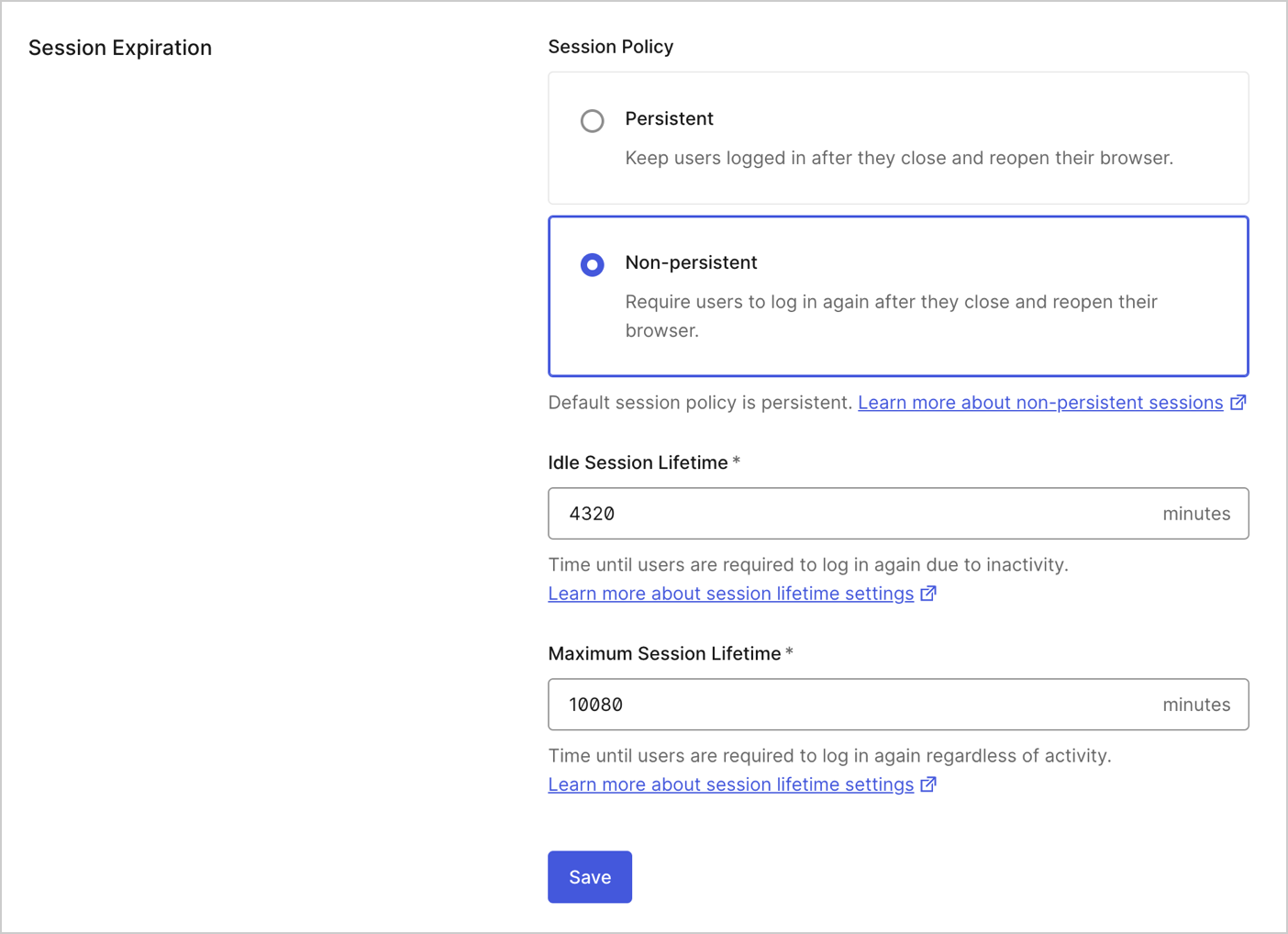 * **Inactivity timeout**: Timeframe (in minutes) after which a user's session will expire if they haven’t interacted with the Authorization Server. It will be superseded by system limits if over 4,320 minutes (3 days) for non-Enterprise plans or 144,000 minutes (100 days) for Enterprise plans.
* **Require log in after**: Timeframe (in minutes) after which a user will be required to log in again, regardless of their activity. It will be superseded by system limits if over 43,200 minutes (30 days) for non-Enterprise plans or 525,600 minutes (365 days) for Enterprise plans.
### Device Flow User Code Format
If you are using the [Device Authorization Flow](/docs/get-started/authentication-and-authorization-flow/device-authorization-flow), these settings configure the randomly generated user code. To learn more, read [Configure Device User Code Settings](/docs/get-started/tenant-settings/configure-device-user-code-settings).
* **Inactivity timeout**: Timeframe (in minutes) after which a user's session will expire if they haven’t interacted with the Authorization Server. It will be superseded by system limits if over 4,320 minutes (3 days) for non-Enterprise plans or 144,000 minutes (100 days) for Enterprise plans.
* **Require log in after**: Timeframe (in minutes) after which a user will be required to log in again, regardless of their activity. It will be superseded by system limits if over 43,200 minutes (30 days) for non-Enterprise plans or 525,600 minutes (365 days) for Enterprise plans.
### Device Flow User Code Format
If you are using the [Device Authorization Flow](/docs/get-started/authentication-and-authorization-flow/device-authorization-flow), these settings configure the randomly generated user code. To learn more, read [Configure Device User Code Settings](/docs/get-started/tenant-settings/configure-device-user-code-settings).
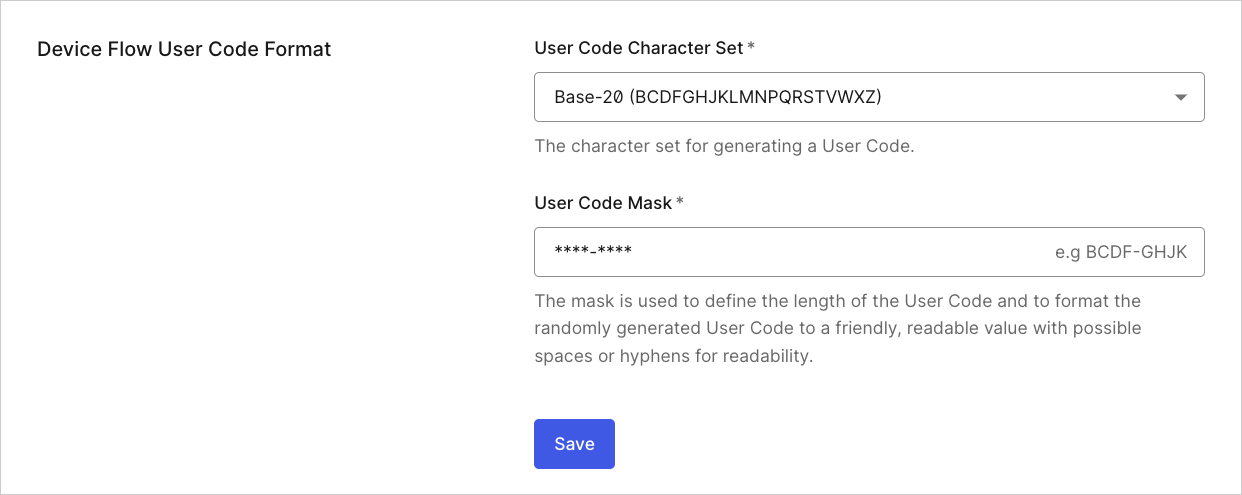 * **User Code Character Set**: Character set used to generate the user code.
* **User Code Mask**: Mask used to format the user code. The mask defines the length of the user code and formats it into a friendly, readable value, allowing spaces or hyphens for readability.
### Global client information
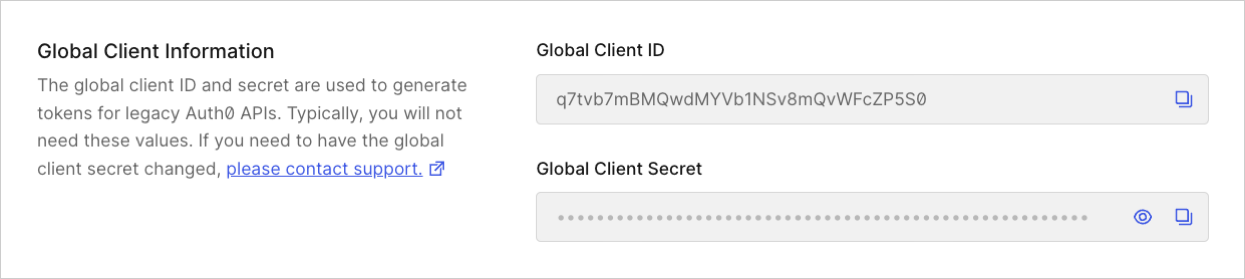
The **Global Client ID** and **Global Client Secret** are used to generate tokens for legacy Auth0 APIs. Typically, you will not need these values. If you need to have the global client secret changed, please [contact support](https://support.auth0.com).
* **User Code Character Set**: Character set used to generate the user code.
* **User Code Mask**: Mask used to format the user code. The mask defines the length of the user code and formats it into a friendly, readable value, allowing spaces or hyphens for readability.
### Global client information
The **Global Client ID** and **Global Client Secret** are used to generate tokens for legacy Auth0 APIs. Typically, you will not need these values. If you need to have the global client secret changed, please [contact support](https://support.auth0.com).
 ### Settings (Advanced)
* **Change Password Flow v2**: When enabled, the newest version of the Change Password Flow will be used. The previous version has been deprecated, and we strongly recommend enabling v2. This flag is presented only for backward compatibility, and once enabled, you can no longer disable it. You can customize the user interface for the Change Password widget on the [Universal Login > Password Reset](https://manage.auth0.com/#/password_reset) tab in the Auth0 Dashboard.
* **Dynamic Client Registration (DCR)**: When enabled, third-party developers will be able to dynamically register applications for your APIs. You can also update this flag using the [`/tenant/patch_settings`](https://auth0.com/docs/api/management/v2#!/Tenants/patch_settings) endpoint of the Auth0 Management API. By default, this feature is disabled. To learn more, read [Dynamic Client Registration](/docs/get-started/applications/dynamic-client-registration).
* **Resource Parameter Compatibility Profile**: The resource parameter compatibility profile determines how Auth0 handles the `resource` parameter in authorization requests.
* When enabled:
* Auth0 uses the `resource` parameter to specify which resource server (API) the client application wants to access
* Auth0 checks the `audience` parameter first; if not provided, it falls back to the `resource` parameter
* The `resource` parameter is consumed by Auth0 and is not forwarded to the upstream IdP
* When disabled (default):
* Auth0 uses only the `audience` parameter to specify the resource server
* The `resource` parameter is treated as an upstream IdP parameter and will be forwarded to the IdP
* **Client ID Metadata Document (CIMD) Registration**: Enable manual CIMD registration by importing an externally hosted Client ID Metadata Document (CIMD) from a URL. CIMD is a JSON file containing client metadata hosted on a secure HTTPS domain controlled by the application. To learn more, read [Register Applications with CIMD](/docs/get-started/auth0-overview/create-applications/register-applications-with-cimd).
* **Enable Application Connections**: When enabled, all current connections will be enabled for any new application that is created.
* **Use a generic response in public signup API error message**: When enabled, errors generated while using the public signup API will return a generic response. This helps protect against user registration enumeration by preventing bad actors from being able to guess previously-registered identifiers (username, email, or phone) from reading error response codes, such as `user_exists`.
* **Enable Publishing of Enterprise Connections Information with IdP domains**: When enabled, it supports [Home Realm Discovery](/docs/authenticate/login/auth0-universal-login/identifier-first) and [Auth0 Lock](/docs/libraries/lock) relies on a checked public file that includes enterprise connection information. If you don’t require that functionality, you can disable it.
* **Enable email verification flow during login for Azure AD and ADFS connections**: When enabled, users will be presented with an email verification prompt during their first login when using Azure AD or ADFS connections.
* **Refresh Token Revocation Deletes Grant**: When enabled, it deletes the underlying grant when you revoke a refresh token using the Authentication API `/oauth/revoke` endpoint.
For existing tenants, this feature is enabled by default to preserve the existing behavior. For new tenants (as of 13 January 2021), this feature is disabled by default to ensure that the revocation of a refresh token will not revoke the grant. If a grant revocation is needed, a separate request must be sent using a grant revocation endpoint.
* **Allow Organization Names in Authentication API**: When enabled, [/authorize](https://auth0.com/docs/api/authentication#authorize-application) and [SAML](https://auth0.com/docs/api/authentication#saml) endpoints can accept both organization IDs and names. Additionally, ID and access tokens will include both `org_id` and `org_name` claims. Before enabling this setting, review [Use Organization Names in Authentication API](/docs/manage-users/organizations/configure-organizations/use-org-name-authentication-api) for important considerations and potential impacts.
* **Allow Pushed Authorization Requests (PAR):** When enabled, the `/par` endpoint can accept authorization requests pushed to it from a client application. This prevents the client application from sending requests via the insecure front channel (i.e. the browser).
### Extensibility
### Settings (Advanced)
* **Change Password Flow v2**: When enabled, the newest version of the Change Password Flow will be used. The previous version has been deprecated, and we strongly recommend enabling v2. This flag is presented only for backward compatibility, and once enabled, you can no longer disable it. You can customize the user interface for the Change Password widget on the [Universal Login > Password Reset](https://manage.auth0.com/#/password_reset) tab in the Auth0 Dashboard.
* **Dynamic Client Registration (DCR)**: When enabled, third-party developers will be able to dynamically register applications for your APIs. You can also update this flag using the [`/tenant/patch_settings`](https://auth0.com/docs/api/management/v2#!/Tenants/patch_settings) endpoint of the Auth0 Management API. By default, this feature is disabled. To learn more, read [Dynamic Client Registration](/docs/get-started/applications/dynamic-client-registration).
* **Resource Parameter Compatibility Profile**: The resource parameter compatibility profile determines how Auth0 handles the `resource` parameter in authorization requests.
* When enabled:
* Auth0 uses the `resource` parameter to specify which resource server (API) the client application wants to access
* Auth0 checks the `audience` parameter first; if not provided, it falls back to the `resource` parameter
* The `resource` parameter is consumed by Auth0 and is not forwarded to the upstream IdP
* When disabled (default):
* Auth0 uses only the `audience` parameter to specify the resource server
* The `resource` parameter is treated as an upstream IdP parameter and will be forwarded to the IdP
* **Client ID Metadata Document (CIMD) Registration**: Enable manual CIMD registration by importing an externally hosted Client ID Metadata Document (CIMD) from a URL. CIMD is a JSON file containing client metadata hosted on a secure HTTPS domain controlled by the application. To learn more, read [Register Applications with CIMD](/docs/get-started/auth0-overview/create-applications/register-applications-with-cimd).
* **Enable Application Connections**: When enabled, all current connections will be enabled for any new application that is created.
* **Use a generic response in public signup API error message**: When enabled, errors generated while using the public signup API will return a generic response. This helps protect against user registration enumeration by preventing bad actors from being able to guess previously-registered identifiers (username, email, or phone) from reading error response codes, such as `user_exists`.
* **Enable Publishing of Enterprise Connections Information with IdP domains**: When enabled, it supports [Home Realm Discovery](/docs/authenticate/login/auth0-universal-login/identifier-first) and [Auth0 Lock](/docs/libraries/lock) relies on a checked public file that includes enterprise connection information. If you don’t require that functionality, you can disable it.
* **Enable email verification flow during login for Azure AD and ADFS connections**: When enabled, users will be presented with an email verification prompt during their first login when using Azure AD or ADFS connections.
* **Refresh Token Revocation Deletes Grant**: When enabled, it deletes the underlying grant when you revoke a refresh token using the Authentication API `/oauth/revoke` endpoint.
For existing tenants, this feature is enabled by default to preserve the existing behavior. For new tenants (as of 13 January 2021), this feature is disabled by default to ensure that the revocation of a refresh token will not revoke the grant. If a grant revocation is needed, a separate request must be sent using a grant revocation endpoint.
* **Allow Organization Names in Authentication API**: When enabled, [/authorize](https://auth0.com/docs/api/authentication#authorize-application) and [SAML](https://auth0.com/docs/api/authentication#saml) endpoints can accept both organization IDs and names. Additionally, ID and access tokens will include both `org_id` and `org_name` claims. Before enabling this setting, review [Use Organization Names in Authentication API](/docs/manage-users/organizations/configure-organizations/use-org-name-authentication-api) for important considerations and potential impacts.
* **Allow Pushed Authorization Requests (PAR):** When enabled, the `/par` endpoint can accept authorization requests pushed to it from a client application. This prevents the client application from sending requests via the insecure front channel (i.e. the browser).
### Extensibility
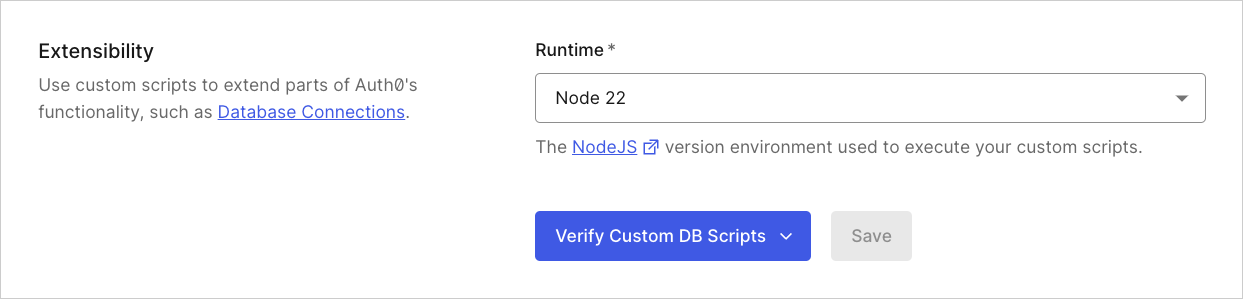 * **Runtime**: Select the version of the Node.js runtime environment you want to use for Auth0 extensibility features, including [Custom Database Action Scripts](/docs/authenticate/database-connections/custom-db/templates) and [Custom Social Connections](/docs/authenticate/identity-providers/social-identity-providers/oauth2).
* **Verify Custom DB Scripts:** Select and run a Node.js runtime version compatibility check for enabled Custom Databases.
The Verify Custom Database Action Scripts feature:
* Is available if your tenant has 1 to 10 [database connections](/docs/authenticate/database-connections/custom-db/create-db-connection).
* Requires [custom database scripts](/docs/authenticate/database-connections/custom-db/templates) to be enabled.
* Only checks Node.js runtime compatibility. Functionality is not verified.
### Migrations
In this section, you can choose to enable or disable various migrations that are available.
### Feature Previews
In this section, you can choose to enable or disable feature previews that are available.
### Delete tenant or subscription
Deleted tenants cannot be restored and the tenant name cannot be used again when creating new tenants. To learn how to reset your tenant configuration, read [Delete or Reset Tenants](/docs/troubleshoot/customer-support/manage-subscriptions/delete-or-reset-tenant).
## Learn more
* [Manage Subscriptions](/docs/troubleshoot/customer-support/manage-subscriptions)
* [Delete or Reset Tenants](/docs/troubleshoot/customer-support/manage-subscriptions/delete-or-reset-tenant)
* [Manage Dashboard Access](/docs/get-started/manage-dashboard-access)
* [Signing Keys](/docs/get-started/tenant-settings/signing-keys)
* [Custom Domains](/docs/customize/custom-domains)
* **Runtime**: Select the version of the Node.js runtime environment you want to use for Auth0 extensibility features, including [Custom Database Action Scripts](/docs/authenticate/database-connections/custom-db/templates) and [Custom Social Connections](/docs/authenticate/identity-providers/social-identity-providers/oauth2).
* **Verify Custom DB Scripts:** Select and run a Node.js runtime version compatibility check for enabled Custom Databases.
The Verify Custom Database Action Scripts feature:
* Is available if your tenant has 1 to 10 [database connections](/docs/authenticate/database-connections/custom-db/create-db-connection).
* Requires [custom database scripts](/docs/authenticate/database-connections/custom-db/templates) to be enabled.
* Only checks Node.js runtime compatibility. Functionality is not verified.
### Migrations
In this section, you can choose to enable or disable various migrations that are available.
### Feature Previews
In this section, you can choose to enable or disable feature previews that are available.
### Delete tenant or subscription
Deleted tenants cannot be restored and the tenant name cannot be used again when creating new tenants. To learn how to reset your tenant configuration, read [Delete or Reset Tenants](/docs/troubleshoot/customer-support/manage-subscriptions/delete-or-reset-tenant).
## Learn more
* [Manage Subscriptions](/docs/troubleshoot/customer-support/manage-subscriptions)
* [Delete or Reset Tenants](/docs/troubleshoot/customer-support/manage-subscriptions/delete-or-reset-tenant)
* [Manage Dashboard Access](/docs/get-started/manage-dashboard-access)
* [Signing Keys](/docs/get-started/tenant-settings/signing-keys)
* [Custom Domains](/docs/customize/custom-domains)