> ## Documentation Index
> Fetch the complete documentation index at: https://auth0-actions-triggers-prototype.mintlify.site/llms.txt
> Use this file to discover all available pages before exploring further.
# 複数のAPIの論理APIを構成する
> Auth0で単一の論理APIを使用して複数のAPIへのアクセスを表し、制御する方法を学びます。
export const AuthCodeBlock = ({filename, icon, language, highlight, children}) => {
const [displayText, setDisplayText] = useState(children);
const [copyText, setCopyText] = useState(children);
const wrapperRef = React.useRef(null);
useEffect(() => {
let unsubscribe = null;
function init() {
if (!window.autorun || !window.rootStore) {
return;
}
unsubscribe = window.autorun(() => {
let processedChildrenForDisplay = children;
let processedChildrenForCopy = children;
for (const [key, value] of window.rootStore.variableStore.values.entries()) {
const escapedKey = key.replaceAll(/[.*+?^${}()|[\]\\]/g, (String.raw)`\$&`);
let displayValue = value;
if (key === "{yourClientSecret}" && value !== "{yourClientSecret}") {
displayValue = value.substring(0, 3) + "*****MASKED*****";
}
processedChildrenForDisplay = processedChildrenForDisplay.replaceAll(new RegExp(escapedKey, "g"), displayValue);
processedChildrenForCopy = processedChildrenForCopy.replaceAll(new RegExp(escapedKey, "g"), value);
}
setDisplayText(processedChildrenForDisplay);
setCopyText(processedChildrenForCopy);
});
}
if (window.rootStore) {
init();
} else {
window.addEventListener("adu:storeReady", init);
}
return () => {
window.removeEventListener("adu:storeReady", init);
unsubscribe?.();
};
}, [children]);
useEffect(() => {
if (!wrapperRef.current) return;
const originalWriteText = navigator.clipboard.writeText.bind(navigator.clipboard);
let isOverriding = false;
const handleClick = e => {
const button = e.target.closest('[data-testid="copy-code-button"]');
if (!button || !wrapperRef.current.contains(button)) return;
isOverriding = true;
navigator.clipboard.writeText = text => {
if (isOverriding) {
isOverriding = false;
navigator.clipboard.writeText = originalWriteText;
return originalWriteText(copyText);
}
return originalWriteText(text);
};
setTimeout(() => {
if (isOverriding) {
isOverriding = false;
navigator.clipboard.writeText = originalWriteText;
}
}, 100);
};
const wrapper = wrapperRef.current;
wrapper.addEventListener('click', handleClick, true);
return () => {
wrapper.removeEventListener('click', handleClick, true);
if (navigator.clipboard.writeText !== originalWriteText) {
navigator.clipboard.writeText = originalWriteText;
}
};
}, [copyText]);
return
{displayText}
;
};
export const codeExample = `https://{yourDomain}/authorize?
scope=read:contacts%20read:calendar&
audience=organize&
response_type=id_token%20token&
client_id={yourClientId}&
redirect_uri=http://localhost:3000&
nonce={nonce}
`;
論理的にはすべて同じAPIの一部である複数の異なる API 実装がある場合、Auth0ダッシュボードで単一の論理APIを使用してそれらを表すことで、承認プロセスを簡素化できます。これを行うと、適切なスコープを割り当てることで個々のAPIへのアクセスを制御しながら、1つの承認フローのみを実装できます。
次のセクションでは、Auth0で複数のAPIを単一のリソースサーバーとして使用して表す方法について説明します。例では、次のサンプルアプリケーションを使用します。サンプルアプリケーションはマイクロサービスアーキテクチャを使用し、次のものが含まれています。
* 2つの Node.js API:`contacts`と`calendar`(マイクロサービスと考えることができます)
* 2つのAPIを表す1つのリソースサーバー
* 2つの名前空間スコープ:`read:contacts`および`read:calendar`
* 両方のAPIで機能する`access_token`を取得するための暗黙の付与フロー
2つのAPIを、`Organizer Service`という1つのAuth0 APIを使用して表します。次に、[暗黙のフロー](/docs/ja-jp/get-started/authentication-and-authorization-flow/authorization-code-flow-with-pkce)を使用してSPAから`calendar`APIと`contacts`APIにアクセスする方法を示す2つのスコープを作成します。
次のステップを完了する必要があります。
1. アプリケーションの接続を有効にする
2. テストユーザーを作成する
3. Auth0で論理APIを登録する
4. 論理APIのスコープを構成する
5. 論理APIへのアクセスを許可する
6. (オプション)シングルログアウト(SLO)またはシングルサインオン(SSO)を実装する
## 前提条件
* [アプリケーションを登録します](/docs/ja-jp/get-started/auth0-overview/create-applications/single-page-web-apps)。
* **シングルページアプリ** の**アプリケーションタイプ** を選択します。
* `http://localhost:3000`および`http://localhost:3000/callback.html`の**許可されたコールバックURL** を追加します。
* [サンプルアプリケーション](https://github.com/auth0-samples/auth0-api-auth-implicit-sample)をダウンロードします。サンプルアプリケーションの設定方法については、[README](https://github.com/auth0-samples/auth0-api-auth-implicit-sample#readme)をお読みください。
## アプリケーションの接続を有効にする
新しく登録したアプリケーションにはユーザーのソースが必要なので、[接続](/docs/ja-jp/connections)を構成する必要があります。このサンプルでは、ユーザーのメールアドレスとパスワードのみを要求するシンプルな[データベース接続](/docs/ja-jp/connections/database)を作成します。詳細については、[データベース接続の設定](/docs/ja-jp/get-started/applications/set-up-database-connections)をお読みください。
## テストユーザーを作成する
新しく作成した接続を使用しているため、それに関連付けられたユーザーはいません。サンプルアプリケーションのログインプロセスをテストする前に、ユーザーを作成して接続に関連付ける必要があります。ユーザーを作成するときは、新しく作成した接続を選択してください。詳細については、[ユーザーの作成](/docs/ja-jp/manage-users/user-accounts/create-users)をお読みください。
## Auth0で論理APIを登録する
サンプルアプリケーション内に含まれる複数のAPIを表すために使用する単一の論理APIを登録します。このサンプルでは、APIの`Organizer Service`を呼び出して、その一意の識別子を`organize`に設定します。デフォルトでは、このAPI用に取得されたトークンの署名アルゴリズムは**RS256** ですが、そのままにしておきます。詳細については、「[APIを登録する](/docs/ja-jp/get-started/auth0-overview/set-up-apis)」お読みください。
## 論理APIの権限を構成する
論理APIがサンプルアプリケーション内に含まれるAPIを表すようにするには、適切な権限(スコープ)を作成する必要があります。
スコープを使用すると、呼び出し元のアプリケーションがアクセスできるAPIアクションを定義できます。1つのスコープは1つのAPI/アクションの組み合わせを表します。このサンプルでは、呼び出し元のアプリケーションが`calendar`という1つのAPIと`contacts`という別のAPIから`read`ことができるようにする必要があるため、次の権限を作成する必要があります。
* `read:calendar`
* `read:contacts`
それぞれをマイクロサービスと考えることができます。詳細については、[API権限の追加](/docs/ja-jp/get-started/apis/add-api-permissions)および[APIスコープ](/docs/ja-jp/get-started/apis/scopes/api-scopes)をお読みください。
## 論理APIへのアクセスを許可する
これで、論理APIがアクセストークンを取得できるようにすることで、APIへのアクセスを提供する準備が整いました。必要なスコープを含めることで、論理APIによって表されるAPIへのアプリケーションのアクセスを制御できます。次の手順では、[暗黙的なフロー](/docs/ja-jp/get-started/authentication-and-authorization-flow/implicit-flow-with-form-post)を使用してサンプルを反映しています。ただし、ニーズに最適なフローを使用できます。例:
* **マシン間アプリケーション** がある場合は、[クライアントの資格情報フロー](/docs/ja-jp/get-started/authentication-and-authorization-flow/client-credentials-flow)を実行して、APIのアクセストークンを要求することを承認できます。
* **ネイティブアプリ** を構築している場合は、[コード交換用証明キー(PKCE)を使用して承認コードフロー](/docs/ja-jp/get-started/authentication-and-authorization-flow/authorization-code-flow-with-pkce)を実装できます。
承認フローの詳細については、[認可と承認フロー](/docs/ja-jp/get-started/authentication-and-authorization-flow)をお読みください。
1. ユーザーがSPA内でログインをクリックすると、アプリはユーザーをAuth0承認サーバー(`/authorize`エンドポイント)にリダイレクトします。呼び出しのパラメーターの詳細については、チュートリアルをご覧ください。[PKCEを使った認可コードフローで独自のAPIを呼び出し](/docs/ja-jp/get-started/authentication-and-authorization-flow/authorization-code-flow-with-pkce/call-your-api-using-the-authorization-code-flow-with-pkce)。
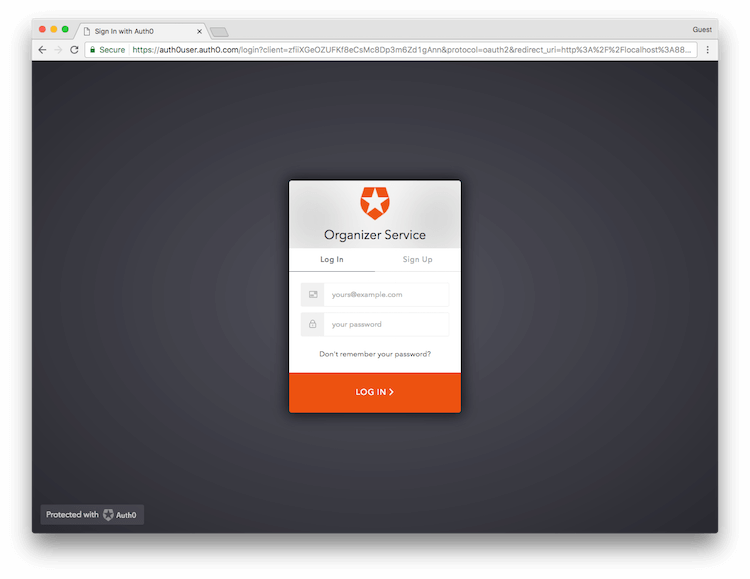
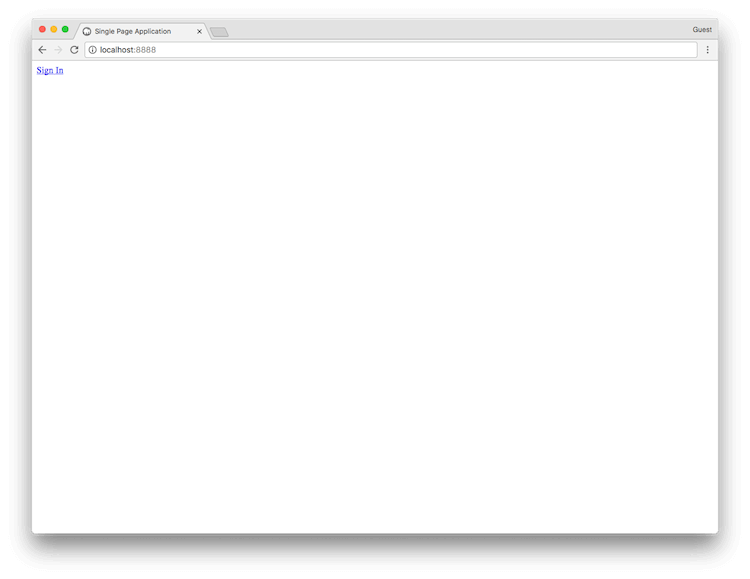 2. Auth0承認サーバーはユーザーをログインページにリダイレクトし、ユーザーは構成されたログインオプションの1つを使用して認証します。
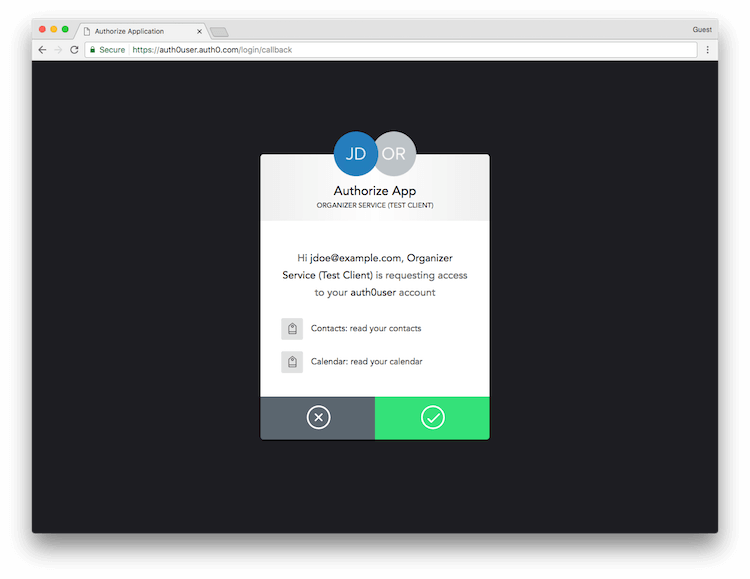
 3. ユーザーがこのフローを初めて通過する場合は、Auth0がSPAに付与する権限をリストした同意プロンプトが表示されます。この場合、ユーザーはアプリが連絡先とカレンダーを読み取ることに同意するよう求められます。
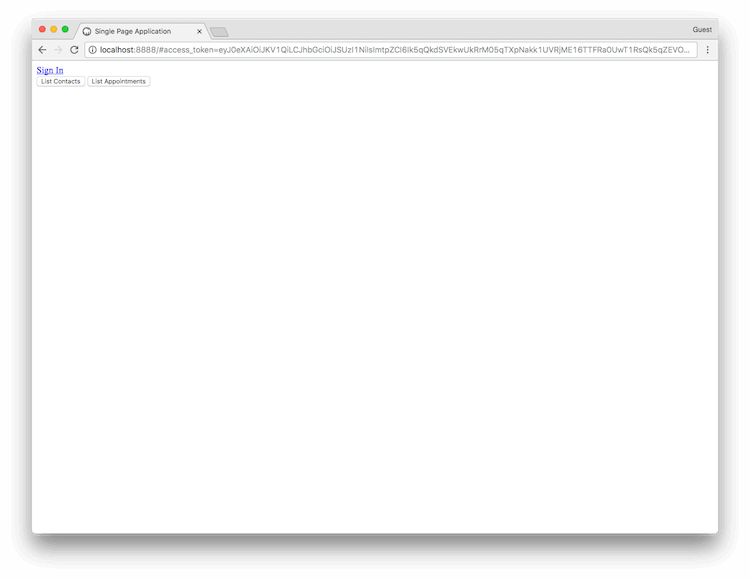
 4. ユーザーが同意すると、Auth0はURIのハッシュフラグメントにトークンを含むSPAにユーザーをリダイレクトします。SPAは、JavaScriptを使用してハッシュフラグメントからトークンを抽出し、ユーザーに代わってAPIを呼び出すことができるようになりました。
```javascript lines theme={null}
function getParameterByName(name) {
var match = RegExp('[#&]' + name + '=([^&]*)').exec(window.location.hash);
return match && decodeURIComponent(match[1].replace(/\+/g, ' '));
}
function getAccessToken() {
return getParameterByName('access_token');
}
```
サンプルでは、ログインに成功すると、論理APIから取得したアクセストークンを使用していずれかのAPIを呼び出すためのボタンが表示されます。
4. ユーザーが同意すると、Auth0はURIのハッシュフラグメントにトークンを含むSPAにユーザーをリダイレクトします。SPAは、JavaScriptを使用してハッシュフラグメントからトークンを抽出し、ユーザーに代わってAPIを呼び出すことができるようになりました。
```javascript lines theme={null}
function getParameterByName(name) {
var match = RegExp('[#&]' + name + '=([^&]*)').exec(window.location.hash);
return match && decodeURIComponent(match[1].replace(/\+/g, ' '));
}
function getAccessToken() {
return getParameterByName('access_token');
}
```
サンプルでは、ログインに成功すると、論理APIから取得したアクセストークンを使用していずれかのAPIを呼び出すためのボタンが表示されます。
 ### シングルログアウト(SLO)またはシングルサインオン(SSO)を実装する
シングルログアウトが必要な一部のマルチアプリケーションのシナリオ(あるアプリケーションからログアウトするユーザーが他のアプリケーションからもログアウトする必要があるような場合)では、`checkSession()`を使用して定期的にAuth0をポーリングし、セッションが存在するかどうかを確認するようにアプリケーションを設定できます。セッションがない場合は、ユーザーをアプリケーションからログアウトさせることができます。同じポーリング方式を使用して、シングルサインオン(SSO)のシナリオにサイレント認証を実装することができます。
ポーリング間隔として、`checkSession()`の呼び出し間隔を15分以上に設定し、レート制限の問題が生じないようにします。
## もっと詳しく
* [APIを登録する](/docs/ja-jp/get-started/auth0-overview/set-up-apis)
* [API許可の追加](/docs/ja-jp/get-started/apis/add-api-permissions)
* [APIスコープ](/docs/ja-jp/get-started/apis/scopes/api-scopes)
* [APIの呼び出しをチェックする](/docs/ja-jp/troubleshoot/authentication-issues/check-api-calls)
### シングルログアウト(SLO)またはシングルサインオン(SSO)を実装する
シングルログアウトが必要な一部のマルチアプリケーションのシナリオ(あるアプリケーションからログアウトするユーザーが他のアプリケーションからもログアウトする必要があるような場合)では、`checkSession()`を使用して定期的にAuth0をポーリングし、セッションが存在するかどうかを確認するようにアプリケーションを設定できます。セッションがない場合は、ユーザーをアプリケーションからログアウトさせることができます。同じポーリング方式を使用して、シングルサインオン(SSO)のシナリオにサイレント認証を実装することができます。
ポーリング間隔として、`checkSession()`の呼び出し間隔を15分以上に設定し、レート制限の問題が生じないようにします。
## もっと詳しく
* [APIを登録する](/docs/ja-jp/get-started/auth0-overview/set-up-apis)
* [API許可の追加](/docs/ja-jp/get-started/apis/add-api-permissions)
* [APIスコープ](/docs/ja-jp/get-started/apis/scopes/api-scopes)
* [APIの呼び出しをチェックする](/docs/ja-jp/troubleshoot/authentication-issues/check-api-calls)