> ## Documentation Index
> Fetch the complete documentation index at: https://auth0-actions-triggers-prototype.mintlify.site/llms.txt
> Use this file to discover all available pages before exploring further.
> How to use Auth0 logs as part of your incident response plan.
# Incident Response: Using Logs
Reviewing logs to assess the impact of an attack is a crucial step in your incident response plan. On this page you'll see how to access logs on the Auth0 Dashboard and some examples of log search queries to find indicators of an attack and review account activity.
## Check Auth0 logs
1. [Login to the Auth0 Dashboard](https://manage.auth0.com/#)
2. The Logs page is located under **Monitoring** in the menu on the left.
3. On the Logs page, you’ll see a search bar along with a filter selection and date picker.
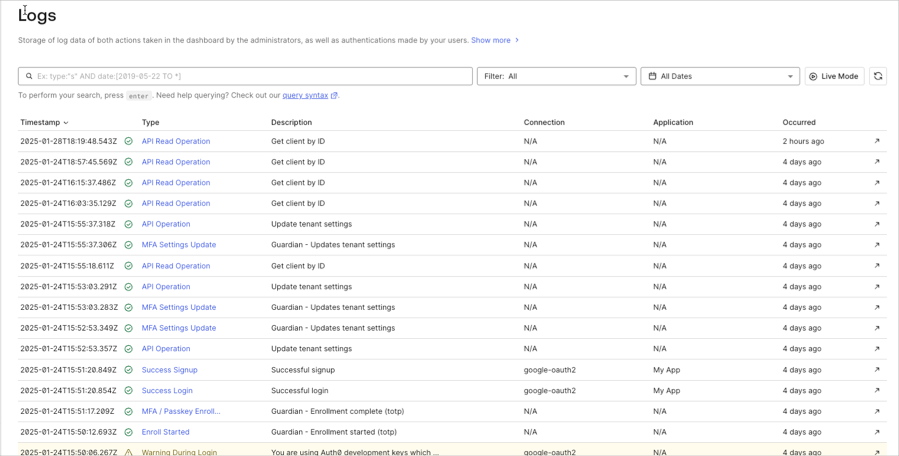 Select a log event from the list to see a **Summary** of the event along with further **Details** including the raw JSON.
### Log structure
Each log event has the following fields:
| Field | Description |
| --------------- | --------------------------------------------------------------------------- |
| `date` | Timestamp when this event occurred. |
| `log_id` | The id of the log event |
| `type` | The log event type |
| `description` | The description of the event. |
| `connection` | The connection name related to the event. |
| `connection_id` | The connection id related to the event. |
| `client_id` | The client id related to the event |
| `client_name` | The name of the client related to the event. |
| `ip` | The IP address from where the request that caused the log event originated. |
| `user_agent` | The user agent that is related to the event. |
| `details` | An object containing further information for this log event. |
| `user_id` | The user id related to the event. |
| `user_name` | The user name related to the event. |
| `strategy` | The connection strategy related to the event. |
| `strategy_type` | The connection strategy type related to the event. |
### Example of failed login log event
Here is an example log event for a failed login due to an incorrect password:
```json lines theme={null}
{
"date": "2020-10-27T19:39:54.699Z",
"type": "fp",
"description": "Wrong email or password.",
"connection": "Username-Password-Authentication",
"connection_id": "con_ABC123",
"client_id": "ABCDEFG123456789",
"client_name": "All Applications",
"ip": "99.xxx.xxx.xxx",
"user_agent": "Chrome 86.0.4240 / Mac OS X 10.15.6",
"details": {
"error": {
"message": "Wrong email or password."
}
},
"user_id": "auth0|ABC123",
"user_name": "test@test.com",
"strategy": "auth0",
"strategy_type": "database",
"log_id": "123456789",
"_id": "123456789",
"isMobile": false
}
```
## Indicators of an attack
Identifying an attack early on may be difficult, but here are some things to look for in your logs along with example search queries:
* High numbers of failed logins with invalid usernames or login attempts for non-existent users.
* `type:"fu"`
* `description:"missing username parameter"`
* `description:"Wrong email or password"`
* Large number of accounts reaching the failed login attempts limit.
* `type:"limit_wc"`
* A high number of login attempts using a leaked password.
* `type:"pwd_leak"`
During your investigation take note of IP addresses, applications being targeted, and connections or identity providers used.
The [Log Search Query Syntax](/docs/deploy-monitor/logs/log-search-query-syntax) page provides details on Auth0's log query syntax and includes more example queries.
## Identify compromised user accounts
To identify user accounts that may have been compromised you can search for:
* Successful login events from a suspicious IP address:
* `type:"s" AND ip:"99.xxx.xxx.xxx"`
## Check compromised user account activity
After identifying a compromised user account you'll want to check the account's activity:
* Search for other log events with the same `user_id`: `user_id:"auth0|ABC123"`
* Check the `client_name` or `client_id` log event fields to see which applications were accessed. Make a note of when access occurred.
* Check for administration access or Auth0 configuration changes
* Search for recent Management API calls: `type:"sapi"`
## Delete or block users from the dashboard
1. Go to [Dashboard > User Management > Users](https://manage.auth0.com/#/users).
2. Search for the user to delete or block.
3. Click the "**...**" button on the far right of the user.
4. Select **Block** or **Delete** and confirm.
Select a log event from the list to see a **Summary** of the event along with further **Details** including the raw JSON.
### Log structure
Each log event has the following fields:
| Field | Description |
| --------------- | --------------------------------------------------------------------------- |
| `date` | Timestamp when this event occurred. |
| `log_id` | The id of the log event |
| `type` | The log event type |
| `description` | The description of the event. |
| `connection` | The connection name related to the event. |
| `connection_id` | The connection id related to the event. |
| `client_id` | The client id related to the event |
| `client_name` | The name of the client related to the event. |
| `ip` | The IP address from where the request that caused the log event originated. |
| `user_agent` | The user agent that is related to the event. |
| `details` | An object containing further information for this log event. |
| `user_id` | The user id related to the event. |
| `user_name` | The user name related to the event. |
| `strategy` | The connection strategy related to the event. |
| `strategy_type` | The connection strategy type related to the event. |
### Example of failed login log event
Here is an example log event for a failed login due to an incorrect password:
```json lines theme={null}
{
"date": "2020-10-27T19:39:54.699Z",
"type": "fp",
"description": "Wrong email or password.",
"connection": "Username-Password-Authentication",
"connection_id": "con_ABC123",
"client_id": "ABCDEFG123456789",
"client_name": "All Applications",
"ip": "99.xxx.xxx.xxx",
"user_agent": "Chrome 86.0.4240 / Mac OS X 10.15.6",
"details": {
"error": {
"message": "Wrong email or password."
}
},
"user_id": "auth0|ABC123",
"user_name": "test@test.com",
"strategy": "auth0",
"strategy_type": "database",
"log_id": "123456789",
"_id": "123456789",
"isMobile": false
}
```
## Indicators of an attack
Identifying an attack early on may be difficult, but here are some things to look for in your logs along with example search queries:
* High numbers of failed logins with invalid usernames or login attempts for non-existent users.
* `type:"fu"`
* `description:"missing username parameter"`
* `description:"Wrong email or password"`
* Large number of accounts reaching the failed login attempts limit.
* `type:"limit_wc"`
* A high number of login attempts using a leaked password.
* `type:"pwd_leak"`
During your investigation take note of IP addresses, applications being targeted, and connections or identity providers used.
The [Log Search Query Syntax](/docs/deploy-monitor/logs/log-search-query-syntax) page provides details on Auth0's log query syntax and includes more example queries.
## Identify compromised user accounts
To identify user accounts that may have been compromised you can search for:
* Successful login events from a suspicious IP address:
* `type:"s" AND ip:"99.xxx.xxx.xxx"`
## Check compromised user account activity
After identifying a compromised user account you'll want to check the account's activity:
* Search for other log events with the same `user_id`: `user_id:"auth0|ABC123"`
* Check the `client_name` or `client_id` log event fields to see which applications were accessed. Make a note of when access occurred.
* Check for administration access or Auth0 configuration changes
* Search for recent Management API calls: `type:"sapi"`
## Delete or block users from the dashboard
1. Go to [Dashboard > User Management > Users](https://manage.auth0.com/#/users).
2. Search for the user to delete or block.
3. Click the "**...**" button on the far right of the user.
4. Select **Block** or **Delete** and confirm.